EMROX - Dual Arm Setup with Linear Axis
This documentation covers the additional notes for the customized Neobotix EMROX with dual arm setup and a linear axis.
Follow the startup process mentioned in the documentation for the first steps.
Additional notes for the startup process
Please ensure you switch on the UR arm using the teach pendant after powering on the ROX platform. Without receiving I/O signals from the UR arm, the Flexisoft controller will not release the brakes to allow the base to navigate
Operating modes
Currently, a separate key switch is used to toggle between modes.
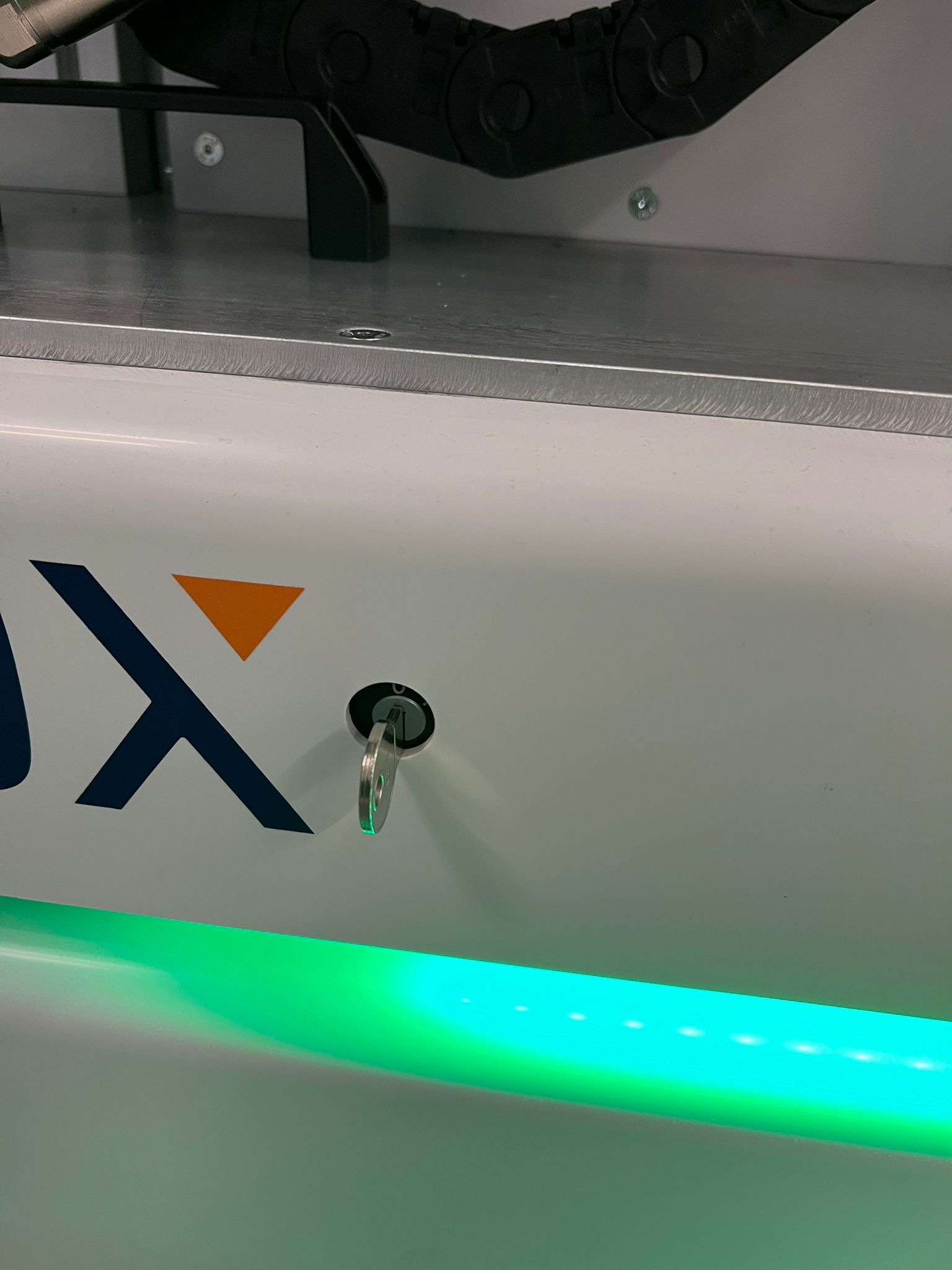
Normal Mode |
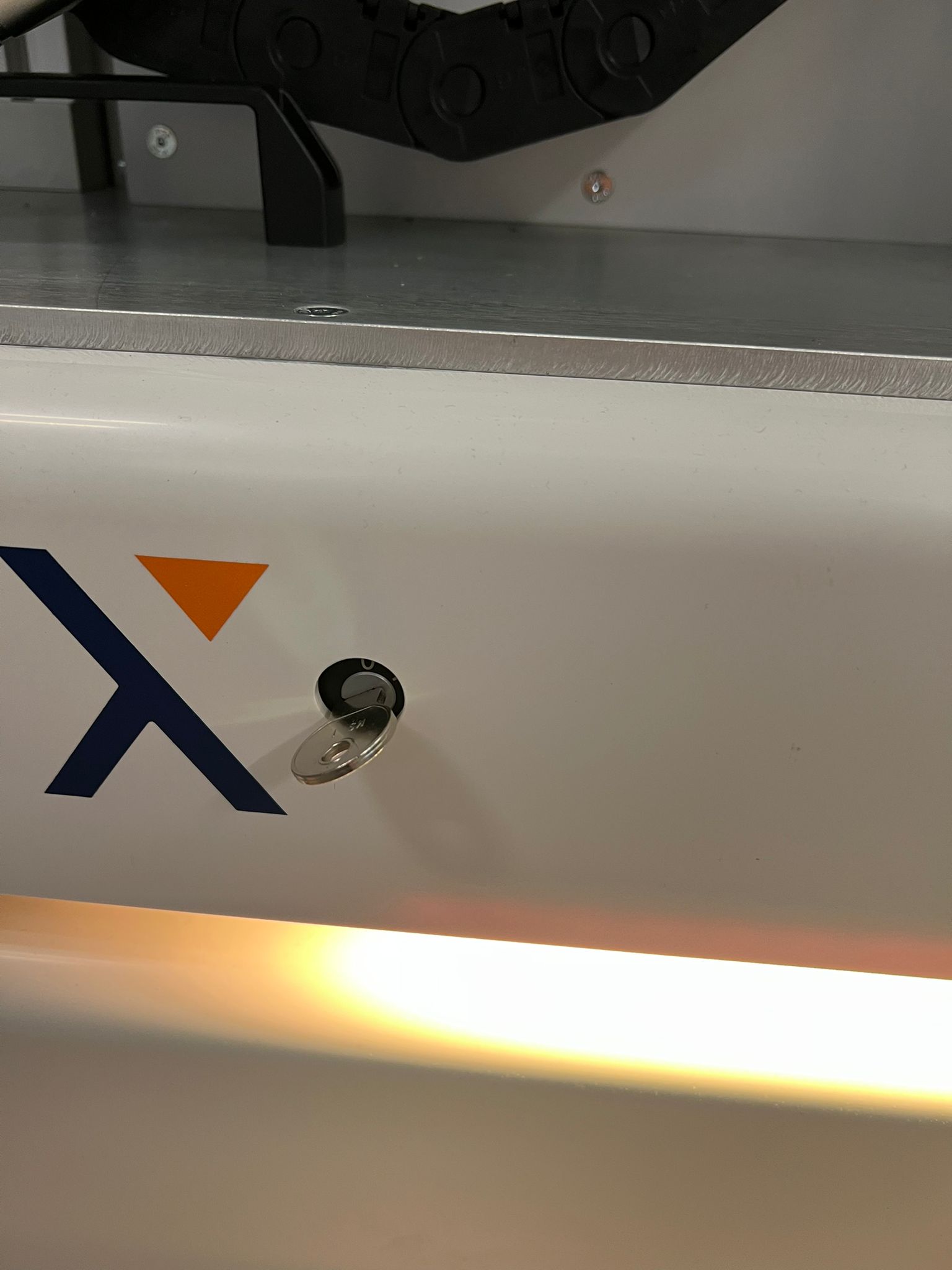
Override Mode |
Warning
Please make sure that, the robot arm is homed before starting to home the linear axis. Failing to do this might result in unexpected crashing of the robot arm with the other robot components or the external environment.
Note
The linear axis is configured by default to be inactive in the controller manager. It must be manually activated using the controller manager.
- Normal mode: this is the recommended mode for deploying the robot in a
specific application. The operation of the various actuating components is
decoupled using the different safety modes provided by Flexisoft. Consequently,
the user must switch safety modes in ROS to either drive the platform or
move the linear axis and arm along their dedicated axes. Further details
regarding these safety modes are as follows:
- Driving mode: This is the standard driving mode for the ROX platform. Please note that both the linear axis and the arm must be in the safe home position for Flexisoft to allow the robot base to move.
- Handling mode: Please use the dedicated ROS service, as detailed in the relayboard v3 documentation, to switch to handling mode. Once the safety mode is switched, you can configure and activate the hardware interface for the linear axis. The linear axis will then begin its homing process; it is configured to return to the safe home position once homing is complete. Further details on activating hardware components and controllers via ROS are provided below. At the end return the linear axis back to the safe home position.
- Override mode: This mode is used when the user needs to quickly control various components with reduced safety constraints.
Homing the robot arm
Attention
The robot needs to be in the safety mode “handling” in order to start homing the robot arm. If you are in override mode, the robot will allow you to home the robot arm even without changing the safety modes.
To know more about homing the UR robot arm from the teach pendant, please refer to page 127 of the UR10e teach pendant documentation.
Additional notes for ROS
First steps with ROS can be seen in the Starting with ROS 2 on the Robot.
Please consider looking at the neo_linear_axis page for additional details on the linear axis.
For this mobile manipulator, we use only one controller manager for both the robot arm and the linear axis. The rest of the configuration related to the linear axis can be seen in the dedicated page for the linear axis.
For enabling the hardware interface and controller, ros2control cli or the rqt tool can be used. Run the following command to open the rqt_controller_manager:
ros2 run rqt_controller_manager rqt_controller_manager
Please right click on the desired hardware component and the controller to activate them.
Please choose the scaled joint trajectory controller for controlling the robot arm with moveit
Please choose the linear axis controller(type: joint trajectory controller) for controlling the linear axis with Moveit and rqt.
Please activate the linear_axis_gpio_controller as well
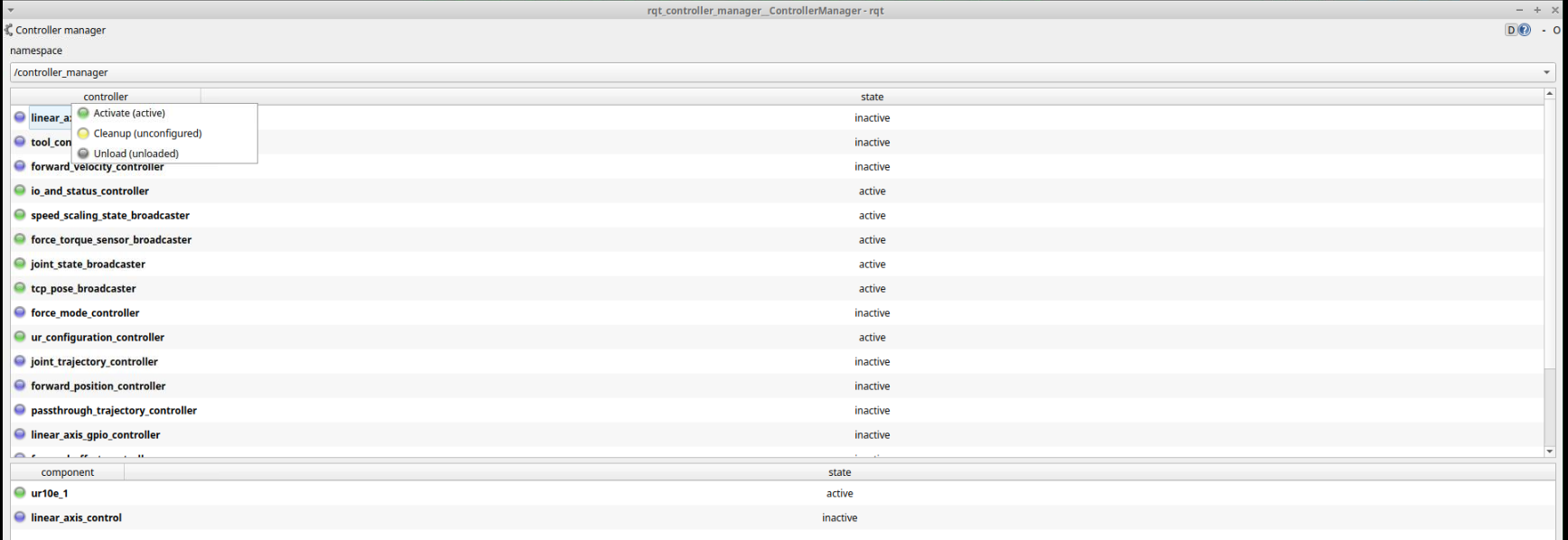
Controller Manager
If you would like to use the command line, for configuring and activating the hardware interface
ros2 control set_hardware_component_state linear_axis_control 'active'
If you would like to use the command line for activating any of the controller,
ros2 control set_controller_state linear_axis_controller active
MoveIt package
neo_rox_moveit2 is the Moveit2 package for controlling both the linear axis and the ur arm using the MoveIt pipeline. We have separate groups for the arm and the linear axis.
A special dedicated branch with all the developments for this unique setup can be found under https://github.com/neobotix/neo_rox_moveit2/tree/linear-axis
To start moveit, please use the following command from the terminal
ros2 launch neo_rox_moveit2 neo_ur_moveit.launch.py arm_type:=ur10e prefix:=arm1_
To know more about the moveit package, please refer neo_rox_moveit2 package documentation.